When Teams audio is not working and you can't hear anyone at all, the fault is almost always on your own speaker side, not in eight colleagues' microphones at once. Microsoft frames it the same way: if you're having trouble hearing others, it's either your speaker or their microphone, and if you're the only one who can't hear them, look at your speaker. The quickest way to split the problem in half is to join the same meeting from Teams for web. If the browser plays sound, the desktop client's device choice is wrong. If the browser is silent too, the fault sits in Windows or in the hardware.
This page is for the person who hears nothing, or hears nothing from Teams while other apps play fine. If only one person in the meeting is silent and everyone else is audible, that's their microphone, and our page on a mic not working or too quiet is the one to send them. Everything below was checked against Microsoft's own support articles on 9 October 2026.
First: is it everyone, or one person?
Ask in the meeting chat before you touch a setting. One line, "Can everyone hear the presenter?", sorts the case in seconds, because the answer tells you whose stack owns the fault. If the room says yes and you hear nothing, it's yours. If the room says no, the presenter is muted or their microphone is failing, and nothing on your machine will change that. If nobody can hear anybody, the meeting itself or the network is in trouble, which is rare and shows up for everyone at once.
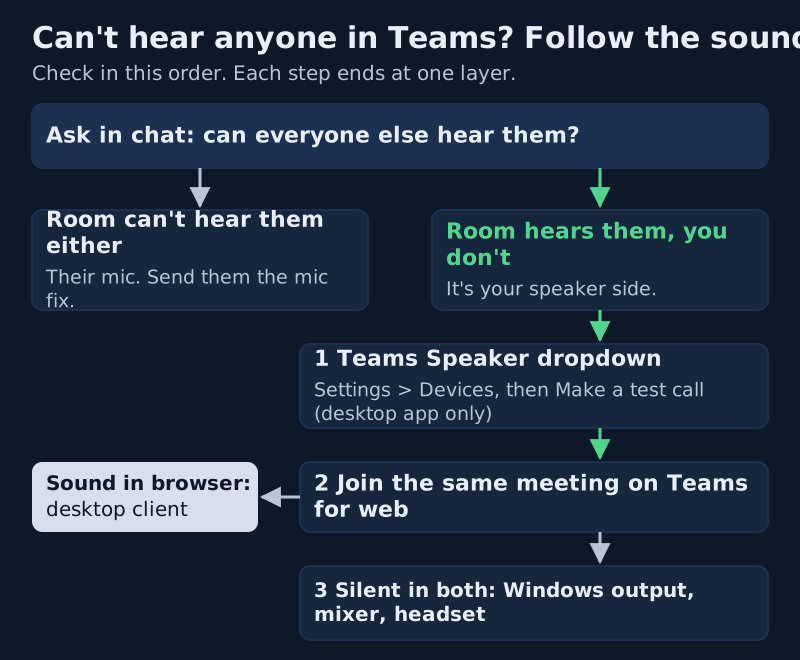
The diagram above is the whole triage in one picture. Each branch ends at a single layer, and each layer has one place to look. Work down it in order. The early checks take seconds and catch most cases; the later ones take minutes and catch the rest. Skipping ahead to a reinstall is the expensive way to discover the speaker dropdown was pointing at a monitor.
Teams speaker device and the volume mixer
Teams keeps its own speaker choice, separate from the one Windows uses for everything else. That is why YouTube can play perfectly while Teams is silent: the two apps are sending sound to different places. Fix the Teams choice first, by name, rather than trusting whatever it calls the default.
- Before a meeting: Settings and more (the three dots) > Settings > Devices. Under Audio settings, pick your headset or speakers from the Speaker dropdown.
- Select Make a test call. Follow the Test Call Bot's prompt to leave a brief recording; Teams replays it to you, then shows a summary you can act on.
- During a meeting: open the dropdown arrow next to Mic, then More actions > Audio settings, and confirm the device under Speaker is the right one and isn't muted.
- If Teams showed a prompt that your speaker is muted before the call started, select Unmute. It's easy to dismiss without reading.
Two limits on the test call are worth knowing. Microsoft says it is available in English only for now, and it is unavailable on Teams for web, so you can only run it from the desktop app. The recording is deleted straight after the call. If your device isn't in the list at all, Microsoft's advice is plain: charge it if it's Bluetooth, or unplug and replug it if it's wired, then reconnect.
The per-app slider in Windows
Windows gives each app its own volume, and a Teams slider dragged to zero months ago stays at zero. Right-click the speaker icon on the taskbar, or open the volume arrow in Quick Settings, then select the settings icon beside the slider to reach the Volume mixer. Find Teams in the list and check that its slider is up and not muted. While you are in Sound settings, confirm that Choose where to play sound names the same device Teams is using, and that Volume isn't muted for it.
Bluetooth and headset hardware mute
Wireless headsets add a failure mode of their own: a headset can be connected without being connected to you. Many models pair with several devices and attach to whichever wakes first, so the laptop shows a connected headset while the audio is going to the phone in your bag. Microsoft's own wording covers it: make sure the Bluetooth device is charged and not connected to another device, then reconnect it.
- Turn Bluetooth off on your phone for one call. If sound arrives, the headset was following the phone.
- Check the headset itself for a physical mute switch or a volume dial, on the earcup or the inline cable. They fail silently and look fine on screen.
- If the headset name appears twice in the Speaker list, try the other entry. Some headsets show up as two devices.
- Plug in a wired headset, or use the laptop's own speakers, for one test. A clean result convicts the Bluetooth link.
If the headset works on the phone but not the laptop, remove the pairing in Windows and pair it again from scratch. That clears a stale connection without touching anything in Teams, and it's quicker than any amount of toggling inside the meeting.
Web vs desktop: the fastest isolator
Here is the check most guides leave out, and the one that saves the most time. Open the same meeting in Teams for web, in Edge or Chrome, and join with your camera off. You now have two clients on one machine pointed at the same meeting, and the result splits the fault cleanly.
- Sound in the browser, silence in the app: the desktop client's device choice or its state. Fix the Speaker dropdown, then fully quit and reopen Teams.
- Silence in both: the fault is below Teams, in Windows output, a driver, or the hardware. Go to the Windows checks.
- Sound in both once you've rejoined: the app had simply lost the device mid-call. Rejoining picks it up again.
Leave the meeting in one client before you test the other, or you'll create the duplicate-device echo described on our echo in Teams calls page. And remember that the test call only exists in the desktop app, so the browser test is the one tool that works when the client itself is the suspect.
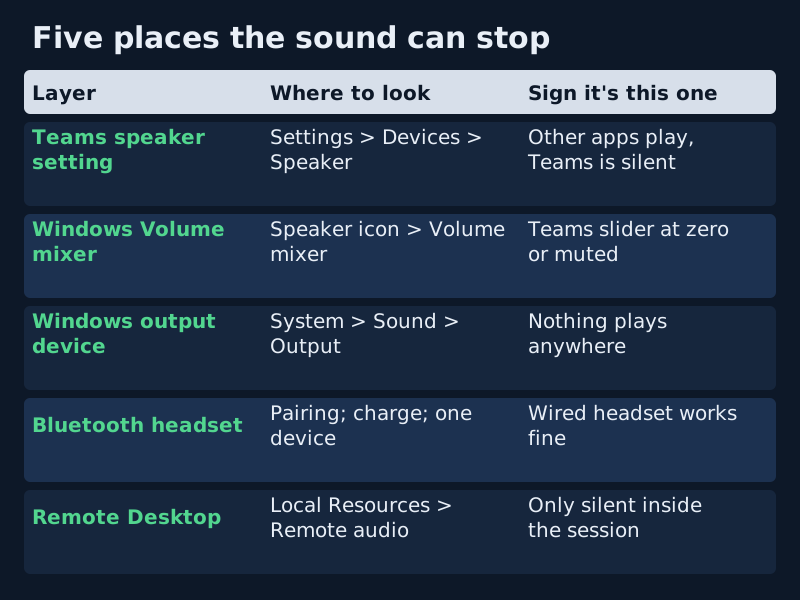
Windows audio enhancements
Audio enhancements are extra processing that Windows or the PC maker applies to a playback device. Microsoft lists switching them off as a standard sound fix: Start > Settings > System > Sound, pick your device under Output, then find Audio enhancements under Advanced settings and choose Off. Test a call, and switch it back on if nothing changes, so you're not living with a setting that did nothing.
Two more fixes circulate in community threads on Microsoft's Q&A forum: turning on the mono audio accessibility setting, and fiddling with a headset's signal enhancement options. Neither is part of Microsoft's own speaker article, and both address narrow cases, such as a one-sided earpiece or a driver that mangles stereo. We list them last, after every official check, and only for that kind of symptom.
If you still hear nothing after all of that, Microsoft suggests re-enabling the device from Advanced > More sound settings. That opens the classic Sound panel, where a disabled device can be enabled again with a right-click.
Edge cases that look like a dead speaker
You're on Remote Desktop
If you run Teams inside a remote session, sound plays wherever the session says it should. In Remote Desktop Connection, open the Local Resources tab, select Settings under Remote audio, and set playback to Play on this computer and recording to Record from this computer. Without that, Teams is playing to a remote machine nobody is sitting at.
A virtual speaker is selected
Noise tools, recorders and note-takers install virtual audio devices, and one of them can end up as the Teams speaker. A virtual device passes sound on only while its own app is running and working. If you see an unfamiliar name in the Speaker list, switch to your physical headset first, then decide whether you want the virtual one back. Krisp, for example, adds a device called Krisp Speaker that cleans incoming audio; its help centre says to check you're signed in to Krisp, and to restart the calling app if the device is missing from its list.
The monitor is taking the sound
A screen connected by HDMI or DisplayPort often appears as a playback device, whether or not it has speakers. Docking at a desk can make it the default without asking. If the Speaker list names your monitor, that's the silence explained.
If the speaker side checks out completely and audio arrives but sounds metallic or breaks up, the fault has moved again. That's a network or processing problem, covered in robotic or choppy voice. For a full view of where every control lives in the client, our audio settings map lays them out.
Teams audio not working: common questions
Why can't I hear anyone on Teams when other apps play sound?
Because Teams has its own speaker setting. Other apps follow the Windows default, while Teams may be pointed at a monitor, a docked device or a headset that's asleep. Open Settings > Devices in Teams, choose your speaker by name, and run Make a test call. Then check the Teams slider in the Windows Volume mixer.
Why is there no sound in Teams on my laptop only in meetings?
Usually the device changed mid-call, or the meeting started before your headset connected. Open the dropdown next to Mic, go to Audio settings, and select the speaker again. If that doesn't hold, leave and rejoin the meeting, which gives Teams a fresh chance to pick up the device.
How do I test my speakers in Teams?
Use Make a test call under Settings > Devices in the desktop app: you leave a brief recording for the Test Call Bot and hear it replayed. It isn't available on Teams for web, and Microsoft says it's English-only for now, so on the web the practical test is a quick call with a colleague.
Can others hear me while I can't hear them?
Yes, and it's common. Your microphone and your speaker are separate devices with separate settings, so one can work while the other is pointed somewhere else. That pattern rules out your network and the meeting, and narrows the fault to the Speaker choice, the Volume mixer or the headset.
Does reinstalling Teams fix having no sound?
Rarely, and it should come last. Every common cause, from the speaker dropdown and the per-app volume to Bluetooth pairing and Windows output, survives a reinstall untouched. Run the browser test first: if Teams for web plays sound on the same machine, the desktop client is the suspect, and only then is a clean reinstall worth the time.