Robotic or Choppy Voice in Teams: Network, CPU, or Bluetooth?
When Teams audio sounds robotic, voice data is arriving late, arriving incomplete, or being squeezed down before it ever leaves the headset. Three causes cover almost every case: a network dropping or delaying packets, a computer too busy to process audio on time, and a Bluetooth headset that has switched into its hands-free mode because the microphone is on. Teams' own call health panel separates the first two in under a minute, and the third has a tell of its own: it starts the moment the mic opens and never varies with the time of day.
This page is for anyone who sounds metallic, broken-up or underwater to colleagues, or hears others that way. If people hear you doubled, that's echo, a different fault with its own page. If they hear nothing, start with the mic page instead.
3 stops, in the order below
Each stop is a numbered section on this page; each dot is one of its steps, or one per-OS path.
- 1Starve-proof the network: read Teams' call health panel4 steps
- 2Unload the CPU4 steps
- 3Rule out the in-between: Bluetooth's hands-free trap4 steps
Robotic vs choppy: two different faults
People use the words interchangeably, but they describe different failures, and telling them apart halves the search.
Choppy means gaps. Words or syllables go missing, and the voice stutters, freezes and catches up. That's data that never arrived or arrived too late to be played, and it points at the network or at a machine that missed its processing deadline.
Robotic means the voice is all there but sounds wrong: metallic, warbling, flat or tinny. Two very different things produce it. One is the codec covering for lost packets, smoothing over the gaps with synthetic sound, which is why heavy packet loss often sounds robotic rather than silent. The other is a voice that was captured at low quality in the first place, the classic Bluetooth headset symptom.
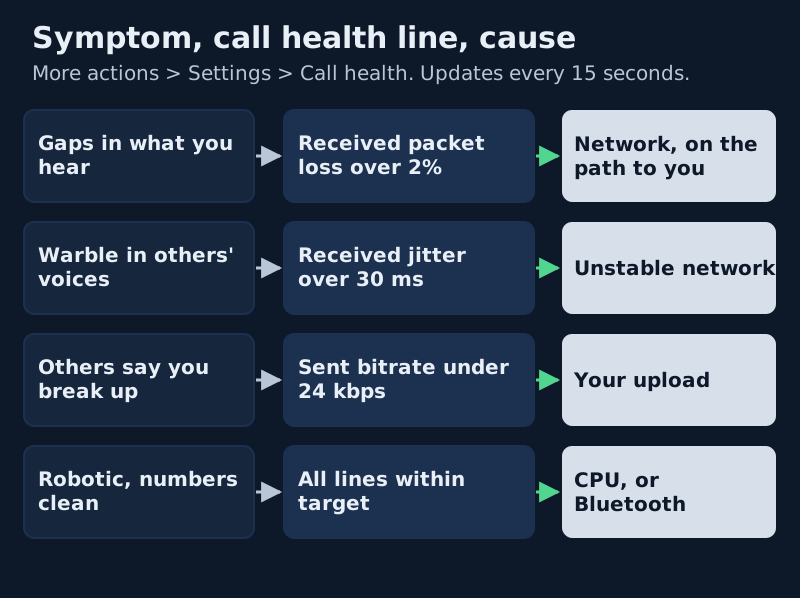
The fastest way to tell them apart is to notice what the problem follows. If it tracks the time of day or the place you're sitting, it's the network. If it tracks what your computer is doing, it's the CPU. If it tracks one headset, starting as soon as you unmute, it's Bluetooth.
1. Starve-proof the network: read Teams' call health panel
Don't guess at the network. Teams measures it during every call. Select More actions in your meeting controls, then Settings > Call health. Microsoft's panel shows real-time data for network, audio, video and screen sharing, and the figures refresh every 15 seconds. Leave it open while the robotic patch happens and read the lines below.
| Call health line | Section | Microsoft's target | What a miss sounds like |
|---|---|---|---|
| Roundtrip time | Network / Audio | Under 200 ms | Talking over each other, delayed replies |
| Received packet loss | Network / Audio | Under 2% | Gaps and robotic patches in what you hear |
| Received jitter | Audio | Under 30 ms | Warble and stutter in incoming voices |
| Sent bitrate | Audio | Above 24 kbps (36–128 typical) | Your voice thins out for everyone else |
Source: Microsoft Support, "Monitor call and meeting quality in Microsoft Teams", read 9 October 2026.
Two patterns are worth knowing. If received packet loss or jitter climbs while you hear others breaking up, the problem is on the path to you, or on their side; check whether everyone sounds bad or just one person. If your sent bitrate sinks while colleagues say you sound robotic, your upload is the bottleneck.
Fixes, in order of how often they work:
- Plug into wired Ethernet for one call. If the numbers settle, Wi-Fi was the whole story.
- Pause cloud backups, sync clients, OS updates and anything streaming on the same connection.
- On a corporate VPN, test one call off-VPN or with split tunnelling if policy allows. VPN saturation is a classic.
- Turn your camera off for a minute. If your voice recovers, bandwidth was the constraint.
Clean line, noisy room?
Krisp filters at the device layer, where tenant policy can't reach, in both directions. The 7-day trial needs no card; Core then runs $8/month on yearly billing or $16 month to month (Krisp pricing, 9 Oct 2026).
Start the 7-day evaluation Krisp for Teams users — the full picture →2. Unload the CPU
If call health looks clean and you still sound robotic, the computer is the next suspect. Real-time audio needs processing time every few milliseconds, and a missed slot sounds identical to a lost packet. That's why this cause hides so well behind router-blaming.
Microsoft's published hardware floor for the Teams desktop client is modest: a 1.1 GHz or faster processor with two cores and 4.0 GB of RAM on Windows, and a dual-core processor with 4.0 GB of RAM on a Mac. The figure that matters more is for big meetings: for meetings of 10 or more participants, Microsoft recommends a four-core processor from 2018 or newer. A laptop that meets the minimum but not that recommendation is exactly the machine that copes with a one-to-one and stutters in the all-hands.
- Open Task Manager (Windows) or Activity Monitor (Mac) during a bad call and find what's pinned near 100%.
- Close browser-tab farms, builds, exports and video renders for the meeting.
- Teams' own effects, such as background blur, cost processing on older machines. Turn them off for one call to see whether the voice steadies.
- On a laptop, check the power mode. In Windows 11, Settings > System > Power & battery > Power mode lists three settings (Best power efficiency, Balanced, Best performance). Before an important call on an older laptop, try Best performance and see whether the robotic patches stop.
Remote desktops and VDI
If you run Teams inside Citrix or Azure Virtual Desktop, check whether your session is optimised. Microsoft says that when Teams fails to optimise, it falls back to server-side rendering, where all media is processed on the virtual machine and the experience degrades. Microsoft has also scheduled the older WebRTC-based optimisation for Windows endpoints to reach end of support on 1 October 2026 and end of availability on 1 April 2027, after which the newer optimisation is enforced. If robotic audio started on a virtual desktop around a client change, that's a question for your VDI admin, not a desk fix.
3. Rule out the in-between: Bluetooth's hands-free trap
This is the cause most guides skip, and it produces the purest "robot" sound of all. Microsoft's Windows team explains it plainly. Classic Bluetooth audio has two profiles. A2DP gives high-quality audio but doesn't allow the microphone to be used. HFP, the hands-free profile, allows the microphone but plays audio in mono at lower fidelity. The moment Teams opens your Bluetooth headset's mic, the headset drops into HFP, and everything you hear and send gets narrower.
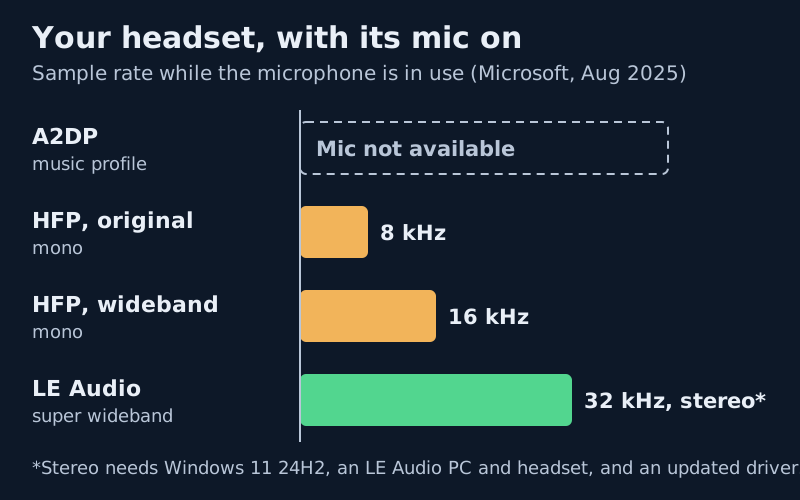
How narrow depends on the generation. Microsoft says the original HFP compression supported only an 8 kHz sample rate, leaving most treble missing; Windows 11 and most modern headsets now support "wideband" voice, which doubles that. Even so, Microsoft describes wideband voice as closer to an AM radio than to the quality Bluetooth delivers without the mic. Newer Bluetooth LE Audio headsets use a 32 kHz "super wideband" rate while the mic is in use, and on Windows 11 version 24H2 with a supporting PC and driver, they can stay in stereo too.
The tell is consistent: the robotic, muffled quality starts as soon as the call (or the mic) starts, is identical at 9am and 4pm, and disappears the instant you switch to a wired headset or the laptop's own microphone.
- Use the Bluetooth headset for listening and pick a different microphone in Teams, such as the laptop's built-in mic or a USB mic. Microsoft's description implies the trade: a headset whose mic isn't in use has no reason to leave A2DP, so playback can stay at full quality.
- If one headset appears twice in the Teams device list, choose the entries deliberately rather than leaving Teams on default.
- Make sure the headset isn't also connected to your phone; Microsoft's speaker guidance says to check it isn't connected to another device.
- If your PC and headset both support LE Audio, keep Windows 11 and the Bluetooth driver from your PC maker up to date; Microsoft says some existing PCs receive the stereo voice feature through driver updates.
Other in-between causes:
- Old audio or network drivers after an OS update. Update both.
- A crowded radio environment for Bluetooth. Try wired for one call to rule it out.
- Only one person sounds robotic while everyone else is clean? The fault is at their end. Send them this page.
Teams on mobile
On a phone the same rules apply with fewer controls. A frequent robotic trigger is the network changing under you: walking from Wi-Fi to mobile data mid-call, or sitting on weak signal. Stay on one network for the length of an important call, or switch to audio only. Organisations can also apply a Teams mobility policy that stops video conferencing over a cellular connection, which forces Wi-Fi for video; if your video is blocked on mobile data, that's the reason, and audio-only is the workaround.
If you've set the iOS app's noise suppression to High, remember Microsoft describes that level as suppressing all background sound that isn't speech. On a noisy street that's what you want; if your voice sounds clipped in a quiet room, try Auto. On Android, Teams also offers noise suppression, though Microsoft lists the three levels only for iOS.
Still stuck?
- Whole organisation affected? That's upstream: an IT ticket, not a desk fix.
- Only on hotel or hotspot Wi-Fi? Expect it; schedule critical calls on real broadband or wired.
- Robotic plus echo? Fix the robotic voice first. Degraded streams also degrade echo cancellation.
- Fine in a test call, robotic in big meetings? Revisit the CPU section and Microsoft's four-core recommendation for meetings of 10 or more.
Quick answers
Why does my Teams audio sound robotic?
Usually because packets are being lost or delayed and the codec is filling the gaps, or because a Bluetooth headset has switched to hands-free mode with its mic on. Open More actions > Settings > Call health: packet loss above 2% or jitter above 30 ms points to the network; clean numbers point to the CPU or the headset.
Why does my voice go robotic only in the afternoon?
Congestion: household streaming hours, office VPN load, a shared connection filling up. Symptoms that follow the clock are network symptoms. Wire the connection or move the meeting.
Why is Teams audio choppy on my Bluetooth headset but fine on wired?
Because using a classic Bluetooth headset's microphone forces it into the hands-free profile, which Microsoft describes as mono and lower fidelity. Use a different microphone and keep the headset for listening, or use an LE Audio headset on a supported Windows 11 PC.
Does noise suppression cause choppiness?
On weak CPUs it can contribute, because the processing competes for the same scarce cycles. Turn it off for one call. If the chop eases, the machine, not the network, is your bottleneck.
Why does Microsoft Teams start sounding robotic halfway through a call?
Something changed mid-call: a backup started, the laptop throttled, Wi-Fi roamed, or someone joined on video. Watch the call health panel when it happens; it updates every 15 seconds, so the line that jumps tells you which.