Teams music mode, officially high-fidelity music mode, is a per-meeting setting for sharing music rather than speech. Microsoft says it lets Teams use a 32 kHz sampling rate at 128 kbps when the network allows, dropping as low as 48 kbps when bandwidth is short. Turn it on for a lesson, a rehearsal or a performance, and turn it off again for an ordinary meeting, because Microsoft's own guidance is that speech calls use less bandwidth and carry less background noise without it.
Think of this page as a change notice for one toggle. It covers what the setting does, what it leaves to you, where it hides, and the two situations where it won't appear at all. Facts are from Microsoft's support and admin documentation, read on 9 October 2026. If you teach, perform or play audio into meetings, keep reading. If you only ever talk on Teams, the short version is: leave it off.
Who should use it, and who should skip it
Use it when the sound is the subject: an instrument lesson, a choir or band rehearsal, a singing or voice-coaching session, a producer playing a mix for comments, or a service streamed into a meeting. In each of those, the default speech processing works against you, because it's trying to keep a voice and discard everything else. Skip it for stand-ups, sales calls, interviews and anything where people mostly talk. It adds bandwidth and lets background noise through, and you get nothing back for a voice. If you're unsure, the test is simple: would you be annoyed if the meeting filtered out the sound you're about to play? If yes, switch it on.
What music mode changes (and the bitrate numbers)
Ordinary Teams audio is tuned for voices. Music mode tells Teams that the sound you're sending is the content, not something to be cleaned away, and it raises the ceiling on how much audio data it may use to carry it. Microsoft gives two numbers for this mode and only two: a 32 kHz sampling rate, and a bitrate of 128 kbps when network bandwidth allows, which can fall to as low as 48 kbps on a weaker connection.
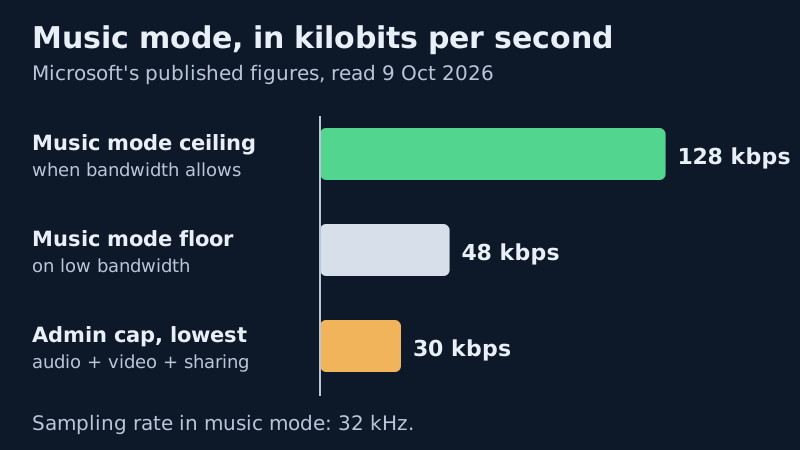
The chart puts those figures beside one admin number that matters here. Teams administrators can set a per-user Media bit rate policy, and Microsoft's admin documentation gives its minimum value as 30 kbps. That cap covers audio, video and app sharing together, in each direction. A tenant that has throttled media hard leaves little room for 128 kbps of music on top of video. Microsoft also notes that this policy doesn't affect the Teams web client.
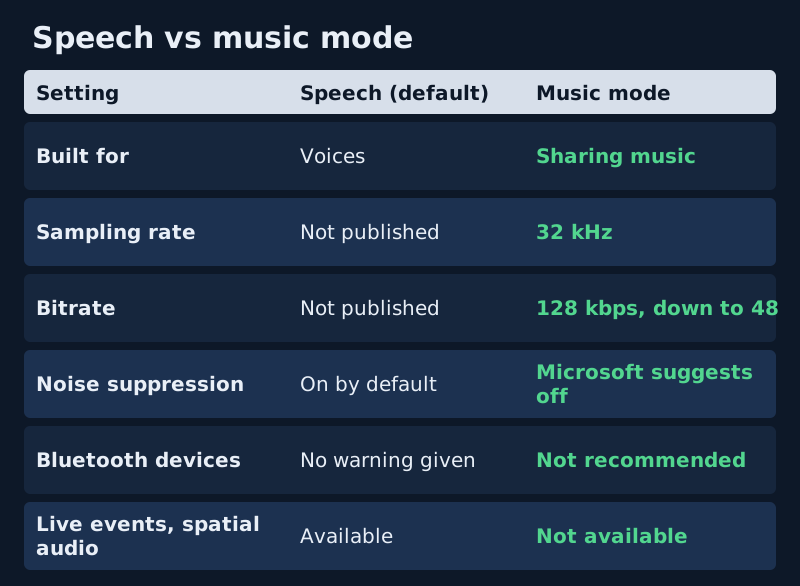
What music mode does not do is switch off your noise suppression or echo cancellation for you. Microsoft's article treats those as separate choices: for the best listening experience it suggests high-quality external audio devices, and adds that you can also turn off noise suppression, echo cancellation and other audio effects. That is a recommendation, not something the toggle does. It matters because suppression is built for speech: Microsoft describes the High level in the Teams iOS app as suppressing all background sound that isn't speech, which is exactly what a performance is.
Turning it on in a meeting
The toggle lives inside the meeting, not in the app's general settings, so you set it per call. Microsoft gives this path for the desktop client:
- In your meeting controls, select the dropdown arrow next to Mic.
- Select More audio settings.
- Turn the High fidelity music mode toggle on.
Once it's on, a music note appears in the meeting controls. To return to normal audio, select the music note again, or simply end the meeting; the setting doesn't follow you into the next call. If you also want noise suppression off for the performance, that toggle sits in the same audio settings area, and our guide to turning on noise suppression shows where it lives so you can put it back afterwards.
Equipment matters more here than the toggle. Microsoft says it doesn't recommend Bluetooth devices for music mode. A wired headset, a USB microphone or an audio interface gives the setting something worth transmitting. And a reminder Microsoft attaches to the same article: you are responsible for clearing the rights to any music you play into a meeting.
Greyed out or missing: the reasons
If you open More audio settings and the toggle isn't there, or can't be switched, the cause is usually the meeting type or another audio feature rather than a fault. Microsoft names two exclusions directly, and a third comes from how admin policy works.
- Teams live events. Microsoft says music mode isn't currently available during live events. Use a regular meeting instead if the music is the point.
- Spatial audio. Music mode isn't available while spatial audio is in use. Turn spatial audio off first, then look for the toggle again.
- No computer audio at all. If an admin has set Mode for IP audio to Not enabled for your account, you can't use computer audio in meetings and must join by phone. There is nothing for music mode to change.
One more check before you raise a ticket: make sure you're looking inside a meeting. Microsoft documents the toggle only in the meeting's own audio settings, not on the app's general Settings > Devices page, which is where people usually search first. That is the same place-confusion that catches people with the suppression toggle, and our page on suppression greyed out explains the policy side of that one.
Music mode is on, but it still sounds thin
The 128 kbps figure is a ceiling, reached only when the network allows. On a congested connection, Teams can step down towards 48 kbps, and the result sounds closer to an ordinary call. Teams' call health panel, under More actions > Settings > Call health, shows your sent audio bitrate in real time, refreshed every 15 seconds. If it's sitting far below 128 kbps, the bottleneck is the network or a media policy, not the toggle.
Back to speech: turn it off afterwards
This is the part most people forget. Microsoft is explicit that the mode is for sharing music, not speech, and recommends switching it off in regular calls and meetings to use less bandwidth and reduce background noise. Leave it on by accident and you are sending more data for a voice that doesn't need it, with your room's hum treated as content.
- End of the performance: select the music note to switch back, or leave and rejoin.
- If you turned noise suppression off for the music, turn it back on for the talking.
- Swap the instrument mic back to your headset, so the meeting hears your voice and not the room.
For a teacher who switches between playing and explaining in one session, the cleanest routine is two devices: a quality microphone for the music with music mode on, and a headset for speech with suppression on. Switching the selected microphone takes seconds in the same menu. If your speech still carries room noise once you're back in speech mode, that's a suppression question, covered in our explainer on what Teams noise suppression does.
Edge cases
Playing a recording rather than a live instrument
Microsoft describes the setting as helping listeners when you share sound in Teams, so it isn't only for live instruments. Run a two-minute test with a colleague before a lesson that depends on playback, and remember that the rights reminder applies to recordings too.
Mobile and web
Microsoft's music-mode article describes the desktop meeting controls only. If you can't find the toggle on a phone or in a browser, that is consistent with the documentation rather than a fault; we have no Microsoft statement either way, so treat the desktop app as the place to set it.
Someone else's music sounds poor
Music mode works on the sending side. If a performer sounds compressed, it's their setting and their connection that count, not yours. Point them at this page and the call health panel.
Teams music mode: common questions
What is high-fidelity music mode in Teams?
It's a meeting setting for sharing music. Microsoft says it supports a 32 kHz sampling rate at 128 kbps when bandwidth allows, falling to 48 kbps on weaker networks. It's meant for performances, lessons and playback, not ordinary talking.
Why is Teams music mode greyed out or missing?
Most often because you're in a Teams live event or using spatial audio; Microsoft lists both as situations where it isn't available. Microsoft's article also places it in the meeting's More audio settings rather than the app's general device settings, so check you're looking in the right place.
Does music mode turn off noise suppression?
Not according to Microsoft's article. It recommends that you also turn off noise suppression, echo cancellation and other audio effects for the best listening experience, which means those are separate switches you change yourself.
Should I leave music mode on for normal meetings?
No. Microsoft advises turning it off during regular calls and meetings to use less bandwidth and reduce background noise. Selecting the music note again, or ending the meeting, switches it off.
Can I use Bluetooth headphones with Teams music mode?
You can, but Microsoft says it doesn't recommend Bluetooth devices for this mode. A wired headset, a USB microphone or an audio interface gives you a better result for music.