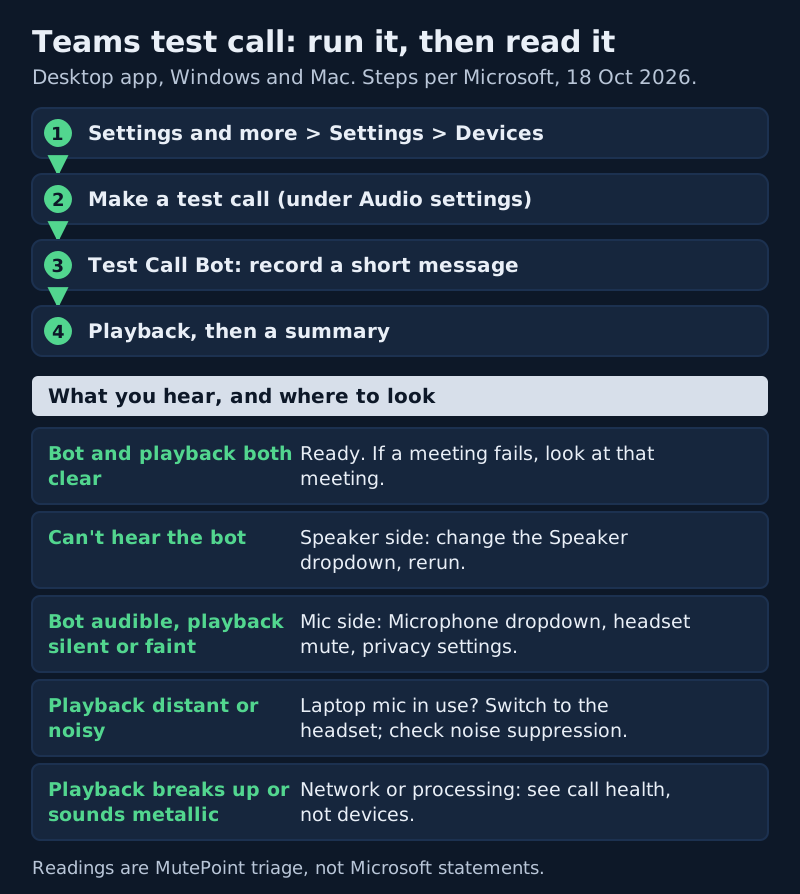
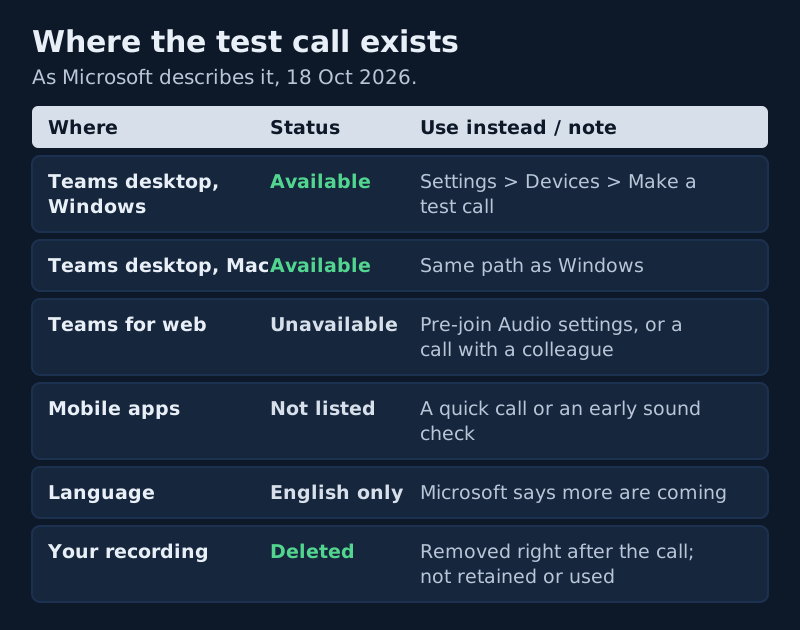
To make a test call in Microsoft Teams, open Settings and more (the three dots beside your profile picture), select Settings, then Devices, and pick Make a test call, listed under Audio settings. A Test Call Bot gives you instructions, you record a short message, and Teams plays it back then summarizes how your mic, speaker and camera fared. Microsoft offers it only in the desktop client on Windows and Mac, says it's unavailable on Teams for web and English-only for now, and deletes your recording as soon as the call ends.
This page is the change notice for that one button. It covers how to run the test, how to read what you hear, what the test can't see, and what to use when the button isn't there. Every Teams path below was checked against Microsoft's support pages on 18 October 2026. If you already know the test failed and you can't hear anyone, our page on when you can't hear anyone on Teams picks up from there.
Run a test call in the desktop app
The test lives in the app's general settings, not inside a meeting, so run it before you join. It uses the speaker and microphone currently chosen in Teams, which is the point: you're testing the exact path the next meeting will use.
- Beside your profile picture, select Settings and more, then Settings.
- Open Devices. Under Audio settings, check the Speaker and Microphone dropdowns name the devices you mean to use.
- Select Make a test call.
- Follow the Test Call Bot's prompt and record a short message, a full sentence at normal volume rather than "testing, testing".
- Listen to the playback, then read the summary. From there you can open your device settings and change what's wrong.
If you change a device after a failed test, run the test again. One pass tells you something is wrong; the second pass tells you the change fixed it. If a device is missing from the dropdown, Microsoft's advice is to unplug it and plug it back in, or, for Bluetooth, to make sure it's charged and not connected to another device.
Reading the result: what each outcome means
The playback is the useful part, because it's your own voice as the meeting will receive it. The summary confirms what Teams detected, but your ears catch problems a status line won't. Here is how we read the four outcomes.
- You hear the bot and a clean playback. Your Teams device path works. If a meeting still fails, the cause is in that meeting, its organizer's policies or the other people, not your setup.
- You can't hear the bot at all. The speaker side is wrong: a monitor, a docked device or a sleeping headset is selected. Change the Speaker dropdown and rerun.
- The bot is audible, but your playback is silent or faint. The microphone side is wrong, muted by a switch on the headset, or blocked by your system's privacy settings. The quiet or dead mic troubleshooter works through each cause.
- The playback sounds far away or full of room. Teams is probably using the laptop's built-in mic rather than your headset, or the noise suppression setting is doing less than you thought.
A fifth reading needs saying separately. If the playback breaks up, warbles or sounds metallic, the devices are working and something between you and the service isn't. That's a network or processing question, covered on our robotic or choppy voice page, and one clean test doesn't rule it out for a busy afternoon.
What the test call can't see
A passing test proves less than it feels like it does. It checks one short recording on one device at one moment. Four things sit outside it.
First, the meeting itself. Microsoft notes that some audio settings may be unavailable depending on policies set by meeting organizers or your IT admin, and a test call outside a meeting doesn't touch those. Second, your join choice. On the pre-join screen you pick an audio source, and only Computer audio uses the devices you just tested; Phone audio, Room audio or Don't use audio send sound somewhere else entirely. Third, other people: your clean test says nothing about the colleague whose laptop fan drowns the call. Fourth, load. A test call is light; a long meeting with video and screen sharing on an older laptop is not.
The settings you can change during a meeting take effect immediately, Microsoft says, from the dropdown arrow next to Mic and then More audio settings. So if a meeting goes wrong after a good test, fix it there rather than leaving to run another test.
No Make a test call button? Where it doesn't exist
Microsoft's pages describe three gaps, and each has a workable substitute. None of them is a fault you can fix by reinstalling.
Teams for web. The test call is unavailable in the browser. Instead, join the meeting with Computer audio and open Audio settings on the pre-join screen to confirm the devices before you go in; the changes apply when you join. A thirty-second call with a colleague is the only real playback test in the browser.
Mobile apps. Microsoft lists the test call for the desktop app on Windows and Mac only. On a phone, ask someone to take a quick call, or join the meeting early and ask for a sound check.
Language. Microsoft says the feature is English-only for now, with more languages coming. If your Teams runs in another language and the button misbehaves, that note is the likely reason.
On Windows you have one more check that doesn't depend on Teams at all. In Settings, System, Sound, select your microphone under Input to open its properties, where Windows offers a microphone test and an input volume slider. If Windows hears you and Teams doesn't, the problem is Teams' device choice or its permission, not the hardware.
Some older guides mention typing a slash command into the Teams search box to start a test call. Microsoft's current articles don't list one, so use the Settings route above, which works in the current desktop app.
Edge cases
The test passes, the meeting fails
Check the pre-join screen. If Computer audio isn't selected, the meeting isn't using the devices you tested. Then check whether the meeting runs with organizer restrictions, such as attendee mics turned off by the organizer, which no device test can reveal.
The playback has an echo
If you tested on laptop speakers with the laptop mic, the bot may hear its own prompt through your speakers. Put on a headset and test again. If others report echo in real meetings, our echo in Teams calls page covers the duplicate-device cases.
You were looking for Skype's sound test
Skype's Echo / Sound Test Service went with Skype, which Microsoft retired in May 2025. In Teams, the test call under Settings > Devices is the equivalent, with the same record-and-replay idea.
Once the test sounds right, our audio settings map shows where every other control sits, and the noise suppression switch-on guide covers the setting most people adjust next.
Teams test call: common questions
How do I make a test call in Teams?
In the desktop app, go to Settings and more > Settings > Devices and pick Make a test call in the Audio settings section. Follow the Test Call Bot's instructions, record a short message and listen to the playback. A summary follows, with a route to your device settings if something needs changing.
Why don't I see Make a test call in Teams?
Most often because you're using Teams for web, where Microsoft says the feature is unavailable. Microsoft limits it to the desktop client on Windows and Mac, and says it's English-only for now. Also check you're in Settings > Devices rather than inside a meeting.
Can I make a test call in Teams on the web or on my phone?
Not according to Microsoft's current pages. On the web, use Audio settings on the meeting's pre-join screen and a short call with a colleague. On a phone, a quick call or an early sound check in the meeting is the practical test.
Does Teams keep my test call recording?
No. Microsoft says the recording is deleted immediately after the call and isn't retained or used by Microsoft.
How do I test my microphone in Teams without a test call?
On the pre-join screen, choose Computer audio and open Audio settings to confirm the microphone. On Windows, the microphone test under Settings, System, Sound, Input shows whether Windows hears you. A short call with a colleague is the only way to hear yourself as others do.